Invite someone to collaborate
On this page
Invite someone to your Relay Server with a Share Key. If you haven’t set up a server and folder yet, create a Relay Server and share a folder first.
Invite your collaborator
1. Open your Relay Server
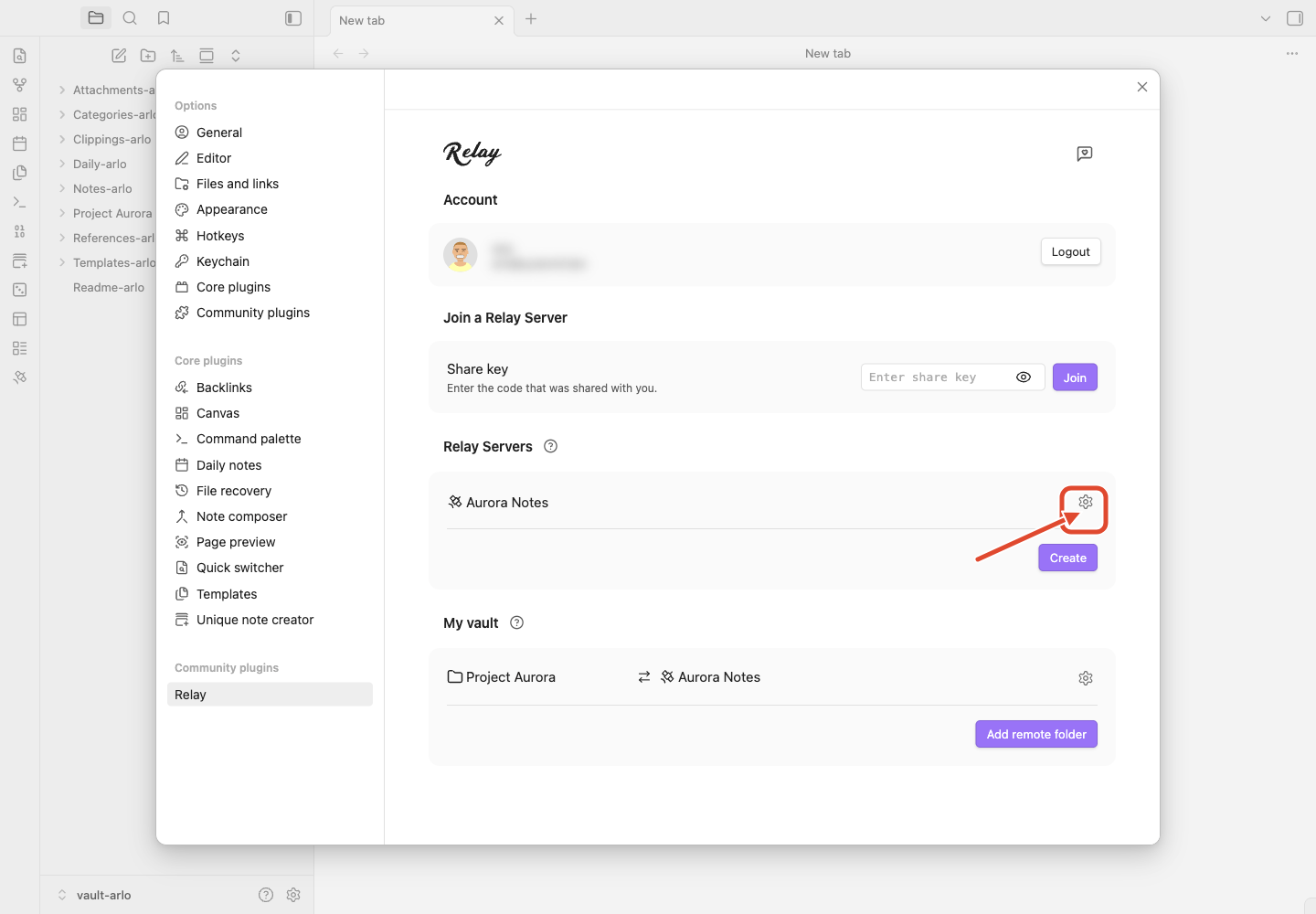
Open Relay settings with the Relay ribbon icon in Obsidian's far-left sidebar. Under Relay Servers, click the gear icon for the server you want to share.
2. Copy the Share Key
On the server's settings page, scroll to the Sharing section and make sure Enable key sharing is on. Then click the eye icon next to the Share Key to reveal it, and copy it.
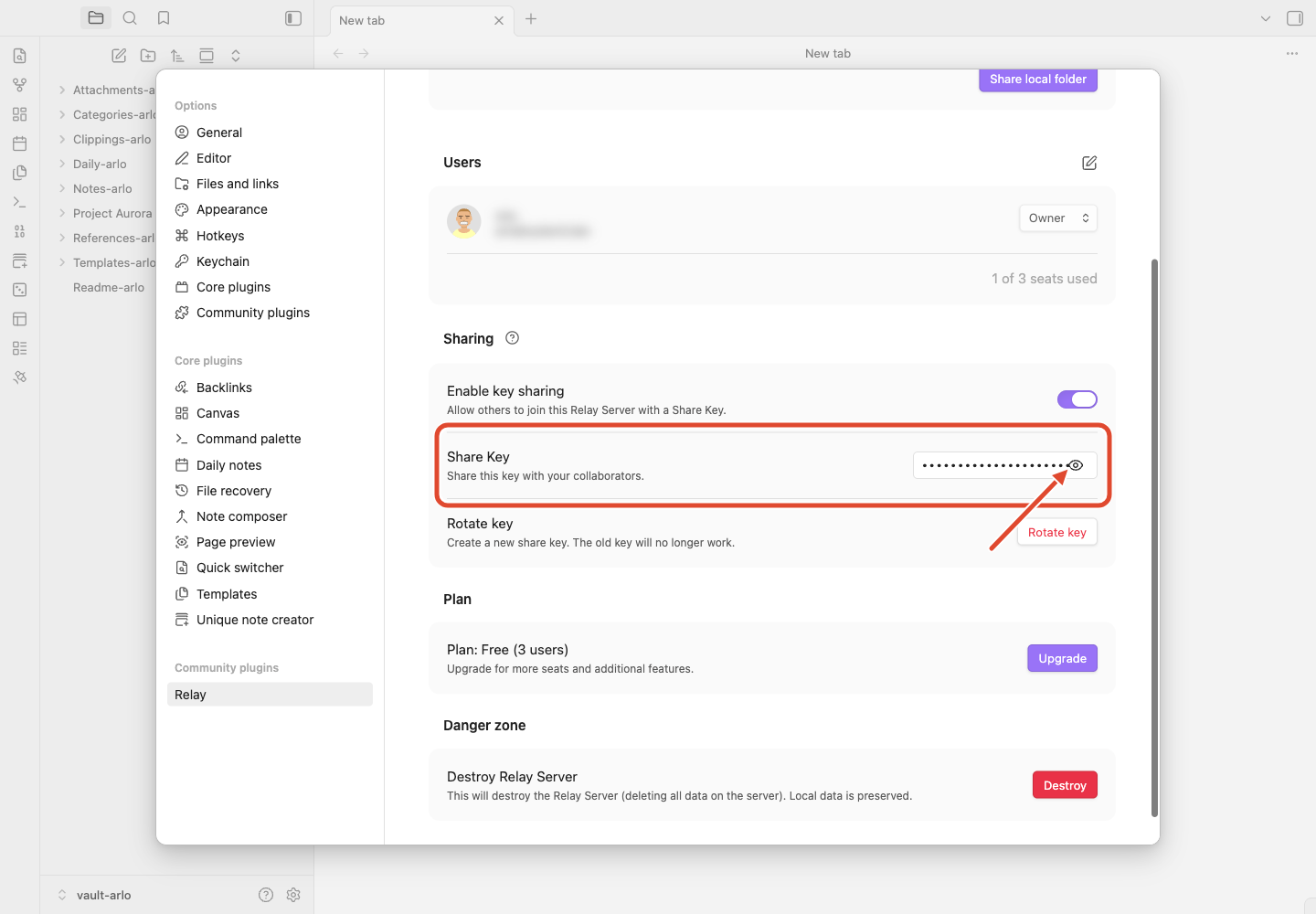
Share Key, then copy it. Treat it like a password — anyone who has it can join your Relay Server. Turn Enable key sharing off once everyone has joined, or use Rotate key to replace it.3. Send the Share Key to your collaborator
Send the key to your collaborator any way you like — a message, an email, however you normally reach them. They do not need Discord or any other account to join your Relay Server.
Your collaborator joins
Your collaborator does these steps on their own device.
1. Install Obsidian and Relay
If they are new to Relay, they install Obsidian and the Relay plugin first. See Install Relay for Obsidian for the setup steps.
2. Enter the Share Key
In Relay settings, under Join a Relay Server, they paste the key into the Enter share key field and click Join.
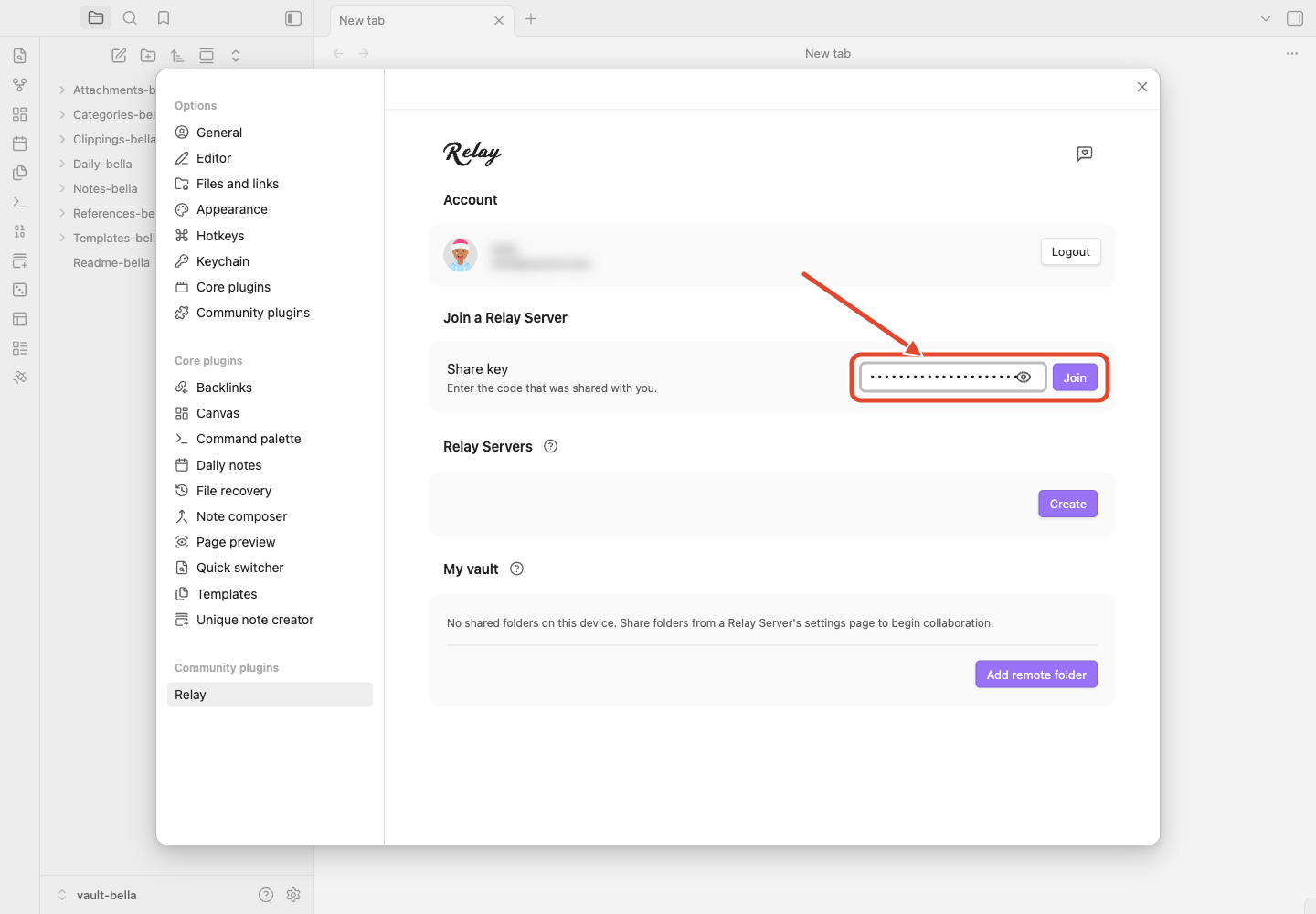
Join a Relay Server section is at the top of Relay settings. Paste the Share Key and click Join.3. Add the Shared Folder to the vault
After joining, your collaborator opens the Relay Server from their Relay Servers list. Next to the Shared Folder, click Add to vault (the download-arrow icon). Check the folder name and location, then click Confirm. Wait for the folder to sync before checking that edits appear on both devices.
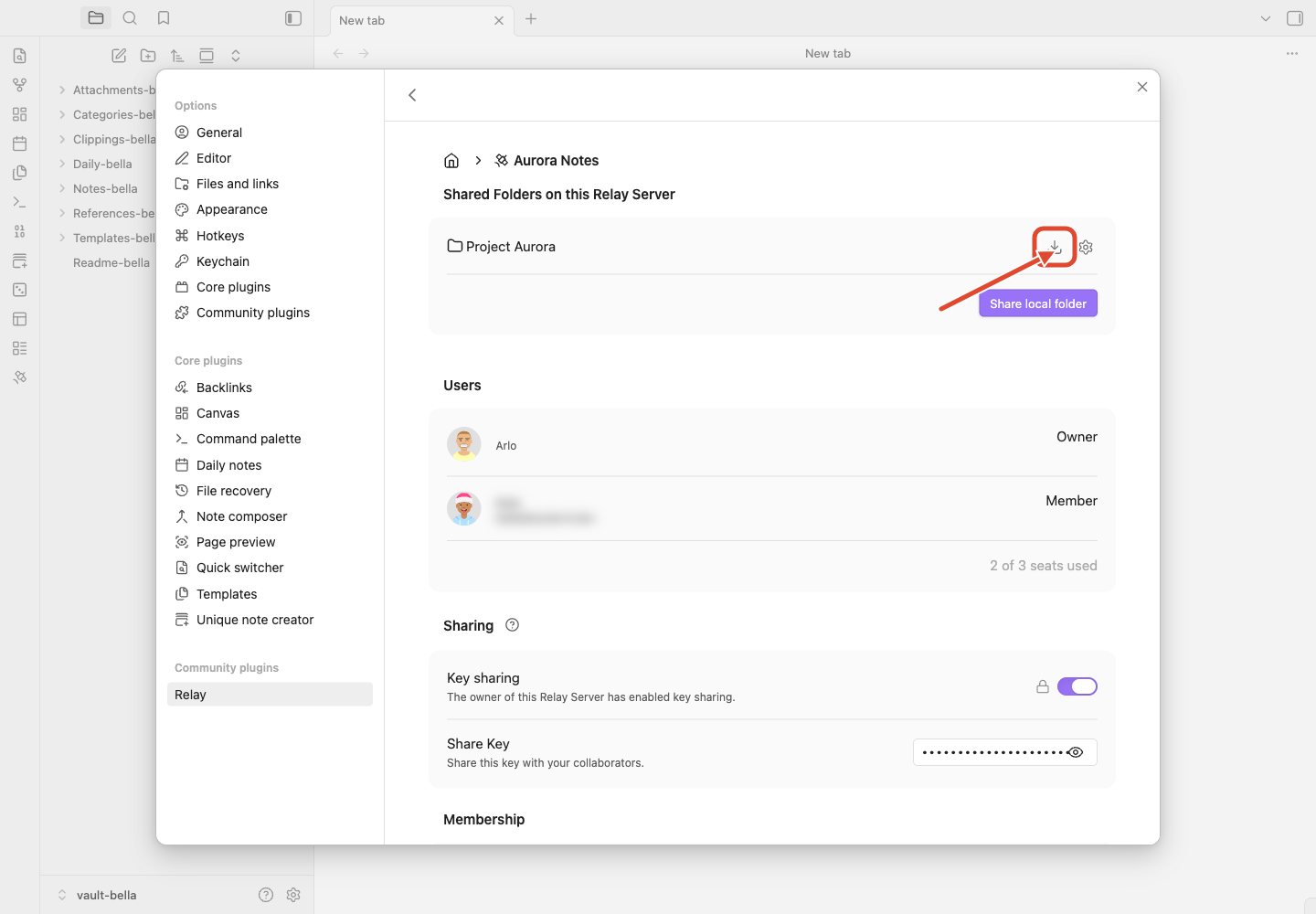
Users list shows server membership, not whether each person has added the folder.Watch the flow
This video shows the whole flow: an owner copies the Share Key, and a collaborator joins and adds the Shared Folder.