Create a Shared Folder with private access
On this page
A Shared Folder lets you share a folder and everything inside it with people on a Relay Server. A Shared Folder with private access is shared only with selected Relay Server users.
The Private toggle appears only on Relay Servers whose subscription includes private access for Shared Folders. If you upgraded Relay but do not see the toggle, make sure you are sharing from the Relay Server that has the subscription. Plans apply to Relay Servers, not to your user account.
Watch the flow
This video shows how to create a Shared Folder with private access in Relay settings.
Before you start
- The Relay Server must be on a paid plan that includes private access for Shared Folders. If needed, see our pricing plans.
- You must be a Member or Owner on that Relay Server. Relay Server Members can create Shared Folders with private access; you do not need to be the Relay Server owner.
- Use a current version of the Relay Obsidian plugin. See Update Relay, or for the adventurous, Get the latest Relay beta.
Create the Shared Folder with private access
1. Open the paid Relay Server
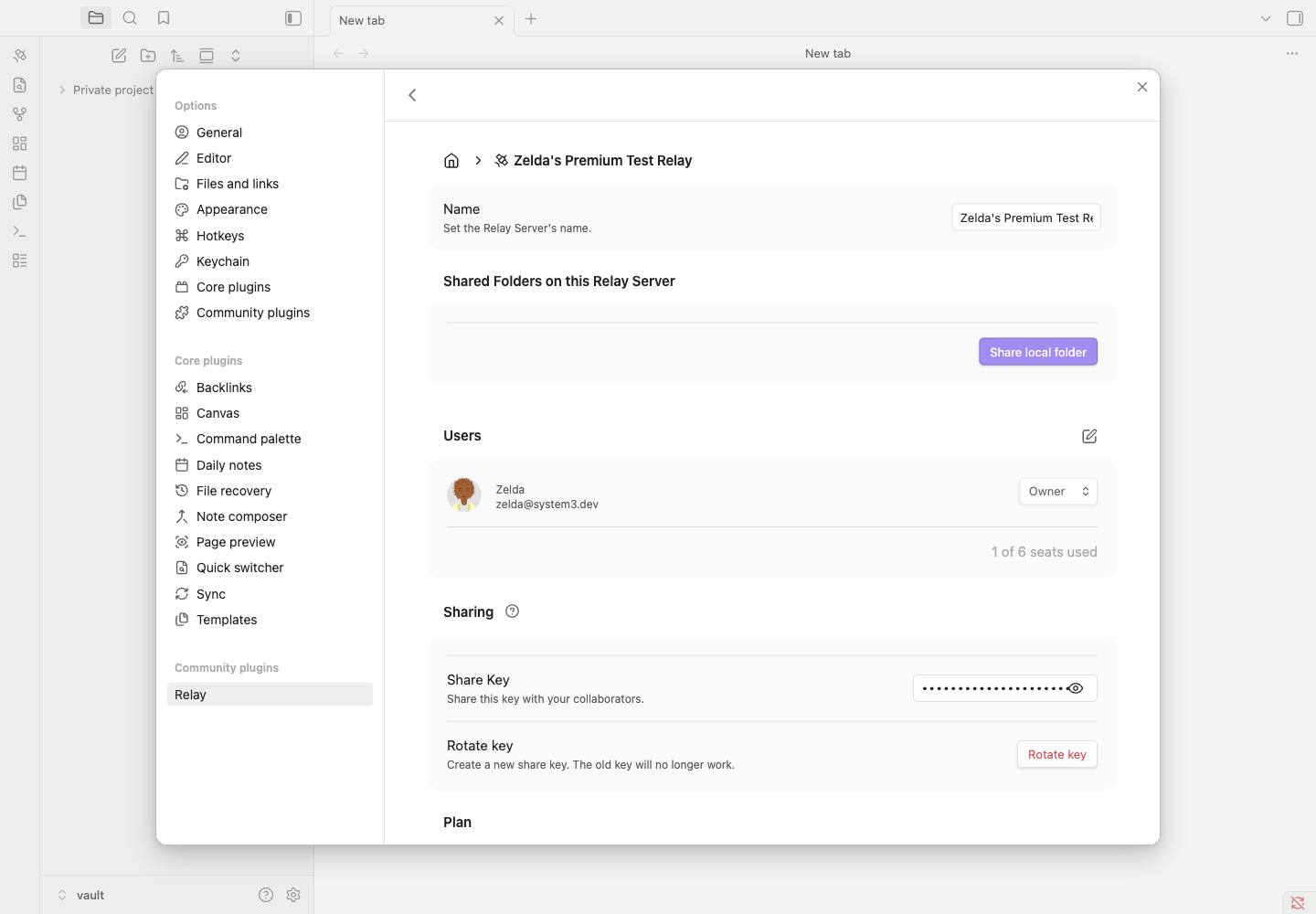
Open Relay settings in Obsidian and select a Relay Server that has a plan with private access.
2. Click Share local folder
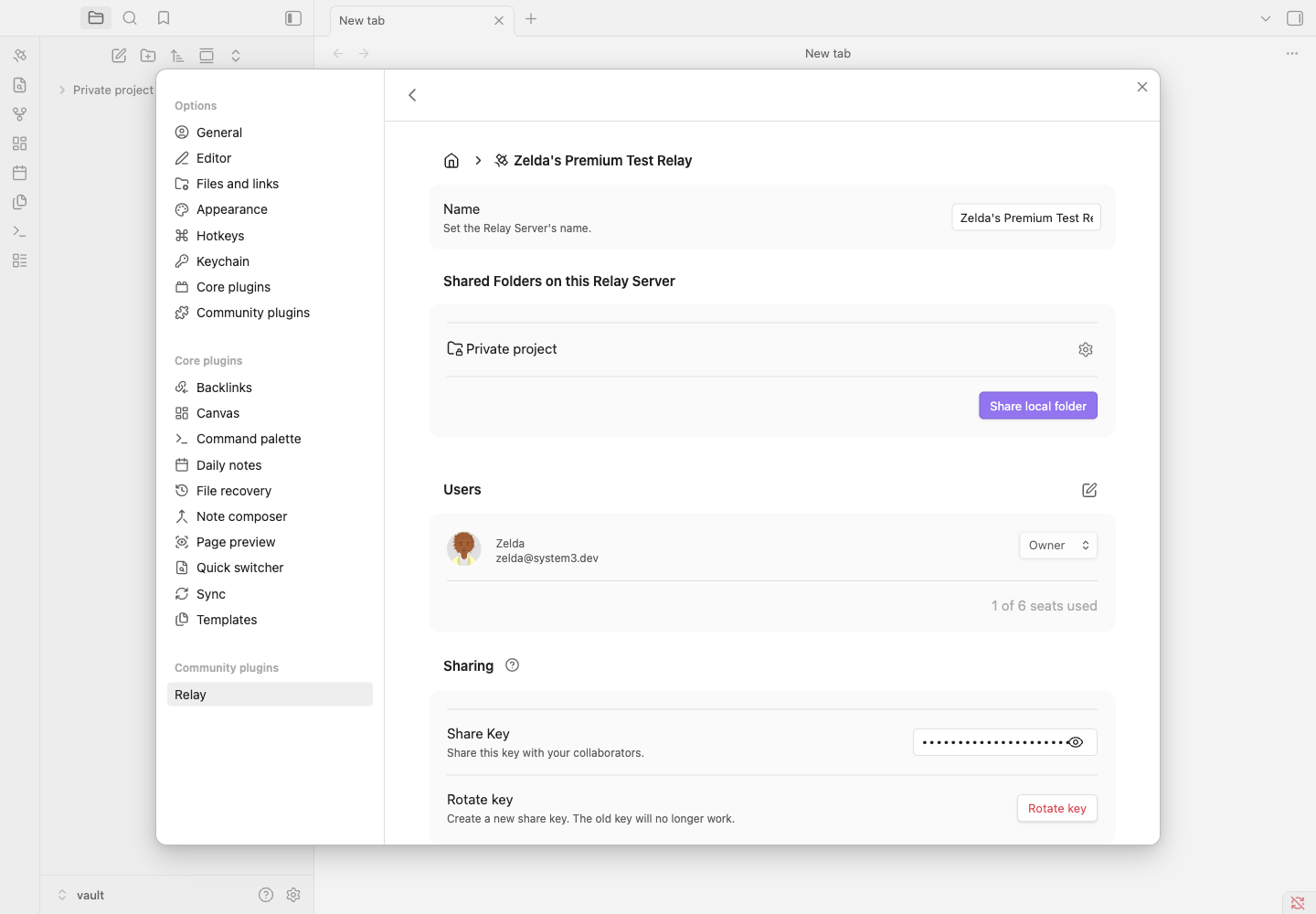
In the Relay Server settings, click Share local folder.
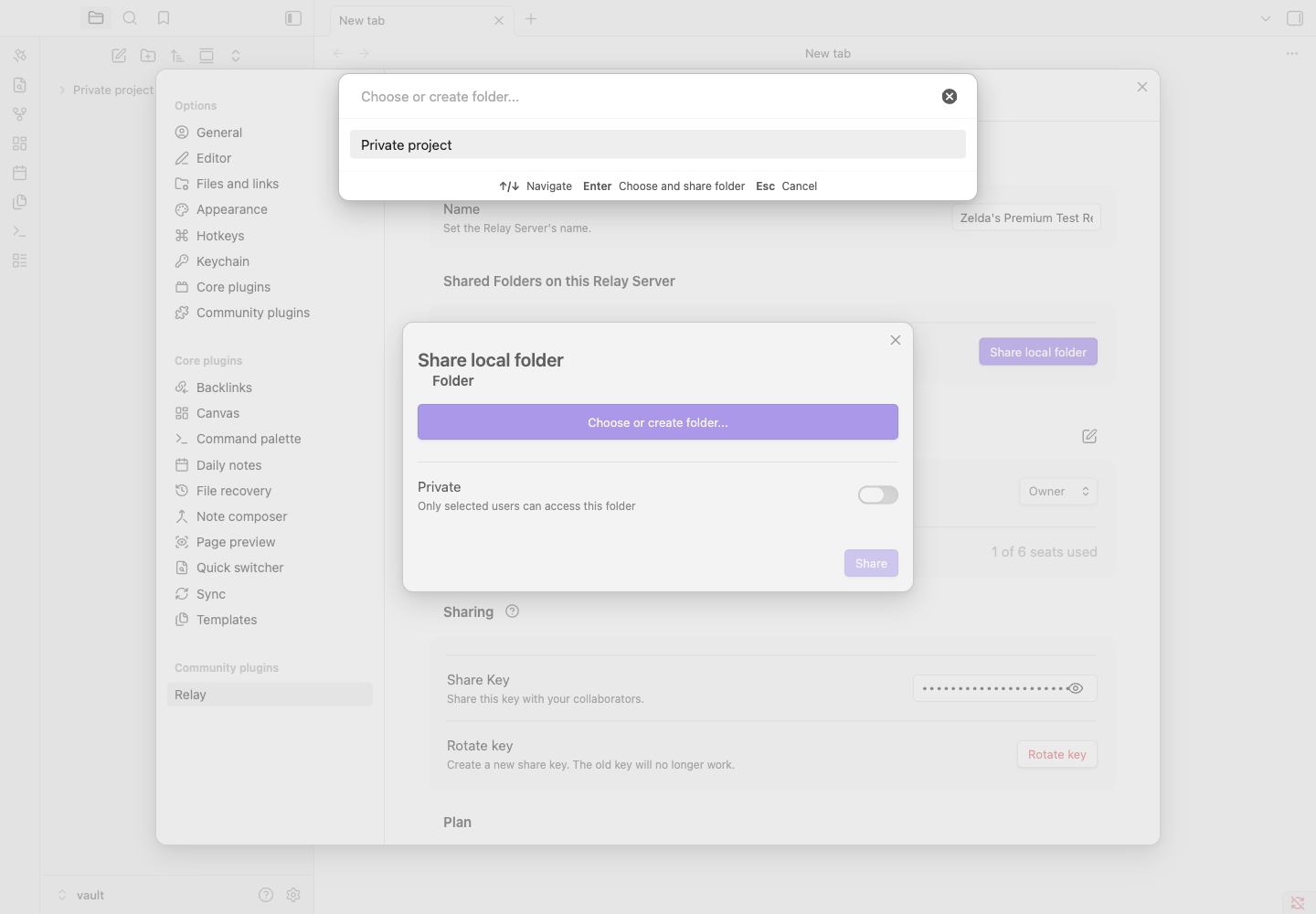
Relay opens the folder selector first. The private access controls are behind this selector, and they may be hidden if your folder list is long. Choose or create the folder you want to share before looking for the Private toggle.
3. Turn on Private
After selecting the folder, turn on Private.
When Private is on, only selected Relay Server users can access this Shared Folder.
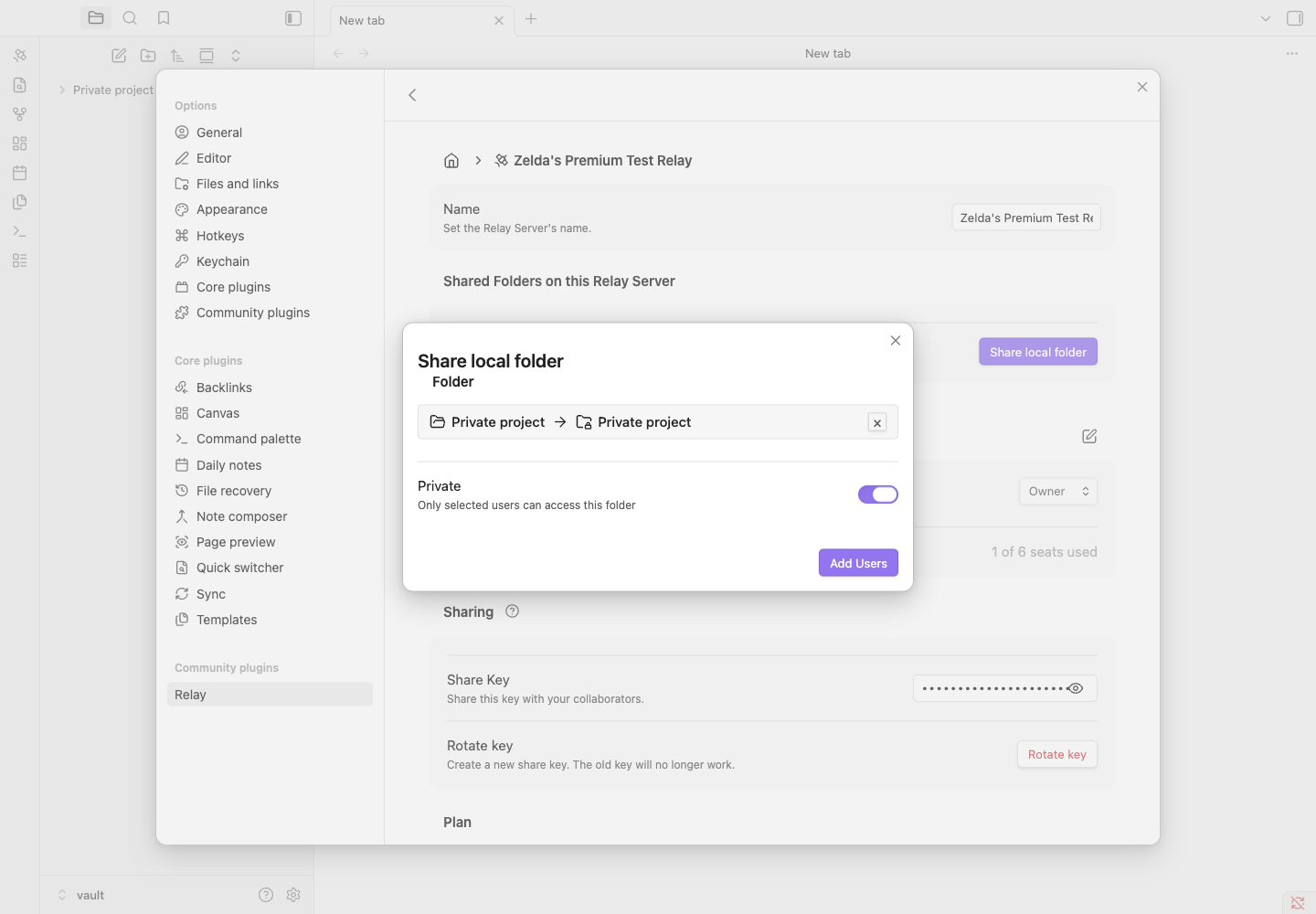
Private toggle appears after the folder is selected.4. Add the users who should have access
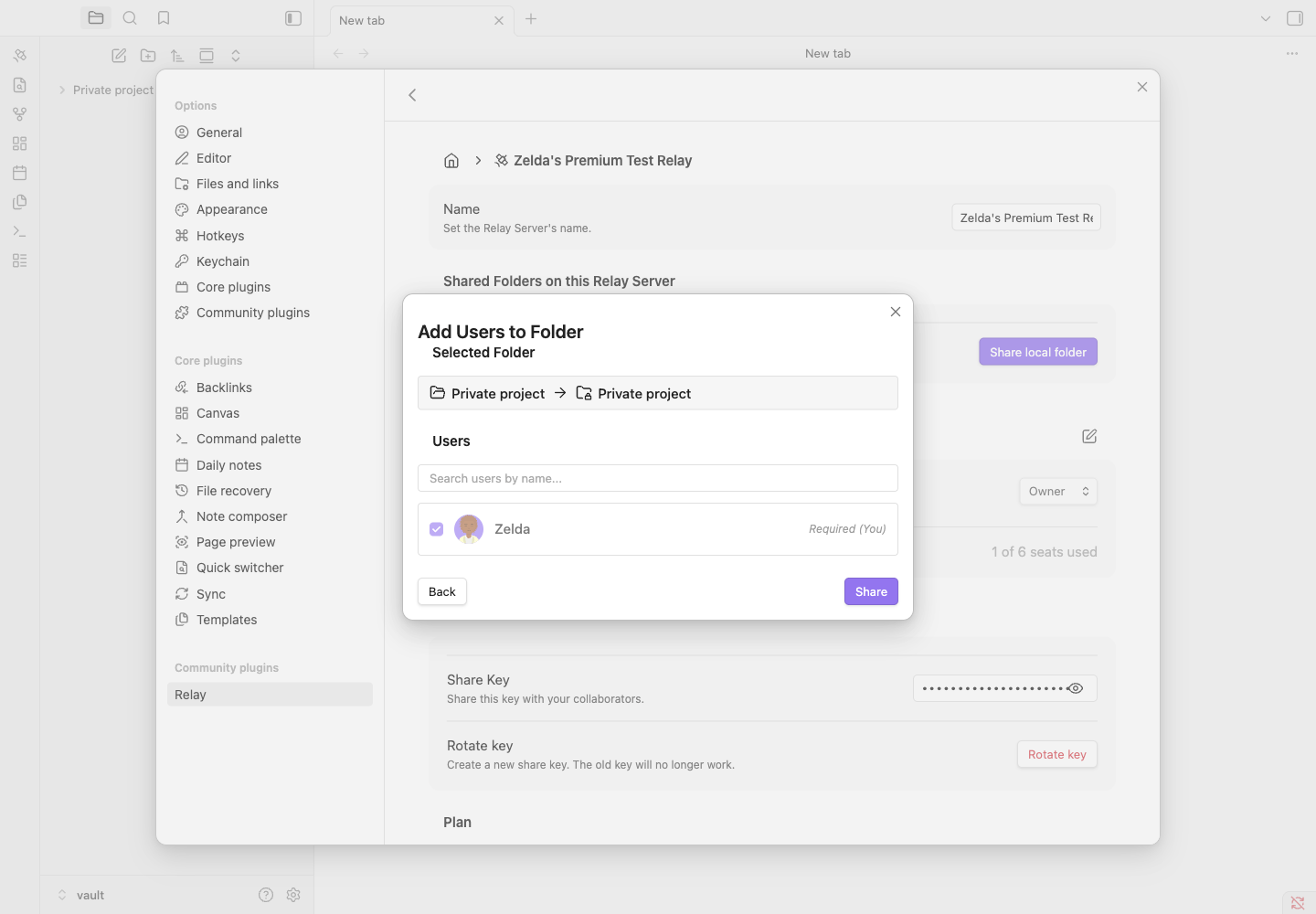
Click Add Users, then select the users who should be able to access the Shared Folder.
Relay adds you automatically as the Shared Folder owner. Select the other Relay Server users who should have access.
5. Click Share
Click Share to create the Shared Folder.
The folder appears under Shared Folders on this Relay Server.
Troubleshooting
I do not see the Private toggle
Select a folder first. Relay opens the folder selector in front of the share dialog, and a long folder list can hide the Private toggle behind it. Choose or create the local folder you want to share, then check the share dialog again.
Check that you selected a Relay Server with a plan that includes private access. A paid subscription applies to one Relay Server, not to every Relay Server connected to your user account. If you upgraded a different server, switch to that server or upgrade this Relay Server.
If you are on the right server and still do not see the toggle, update the Relay plugin.
Do I need to be the Relay Server owner?
No. Relay Server Members can create Shared Folders with private access on a Relay Server that supports private access. The creator is added automatically as the Shared Folder owner.
I do not see the person I want to add
Private access is selected from the users already on that Relay Server. Add the person to the Relay Server first, then create or edit the Shared Folder access list.
Can I set per-folder view and edit roles?
Not yet. Private access currently controls whether a Relay Server user has access to the Shared Folder. A selected user can read and write files in that Shared Folder; a user who is not selected has no access. Relay does not currently support read-only access for Shared Folders.
Use the Relay Server Users section for server-level user management. For private access to a Shared Folder, use the Private toggle and selected-user list.