Delete Shared Folders, notes, or subfolders
On this page
Choose whether to remove this device’s copy of a Shared Folder, end collaboration on it for everyone, or delete notes and subfolders inside it.
| What you want to do | What gets deleted | What stays |
|---|---|---|
| Remove this device’s copy of the Shared Folder | The folder and its files move to trash. Its local Relay metadata is deleted. | The server copy and collaborators’ copies. |
| End collaboration on this Shared Folder for everyone | The Shared Folder is deleted from the Relay Server for all members. | Local files and local metadata on all devices. Only server copies are deleted. |
| Delete notes or subfolders inside the Shared Folder | The selected notes or subfolders and their contents. These deletions sync to collaborators. | The Shared Folder and its remaining contents. Collaboration on those contents continues. |
Before you start: backups
Make sure your backup system is working and includes any unsynced changes you want to keep.
Before ending collaboration on a Shared Folder, coordinate with your collaborators so everyone keeps the files they need.
Open the Shared Folder’s settings
For either action that removes the whole Shared Folder, start here. To delete notes or subfolders inside it, go to that section.
- Open Obsidian’s command palette and run Relay: Open settings.
- Under My vault, select the gear icon beside the Shared Folder.
- Double-check the folder name before choosing a deletion action below.
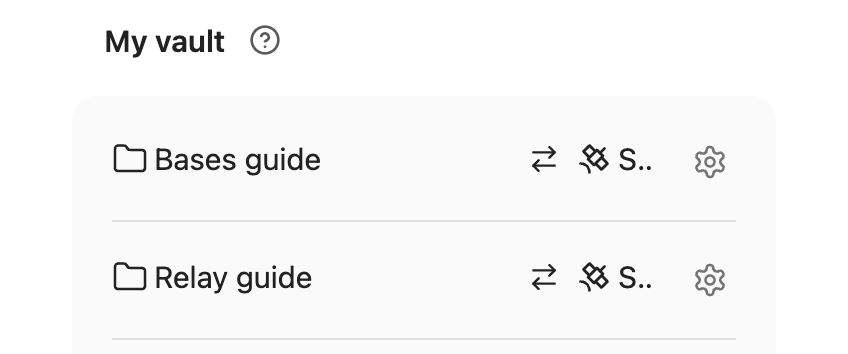
If the folder is only on the Relay Server, select the server under Relay Servers, then select the Shared Folder.
Choose what to remove
Remove this device’s copy of the Shared Folder
The server copy remains available. Other devices can continue syncing, and you can add the folder to this device again later.
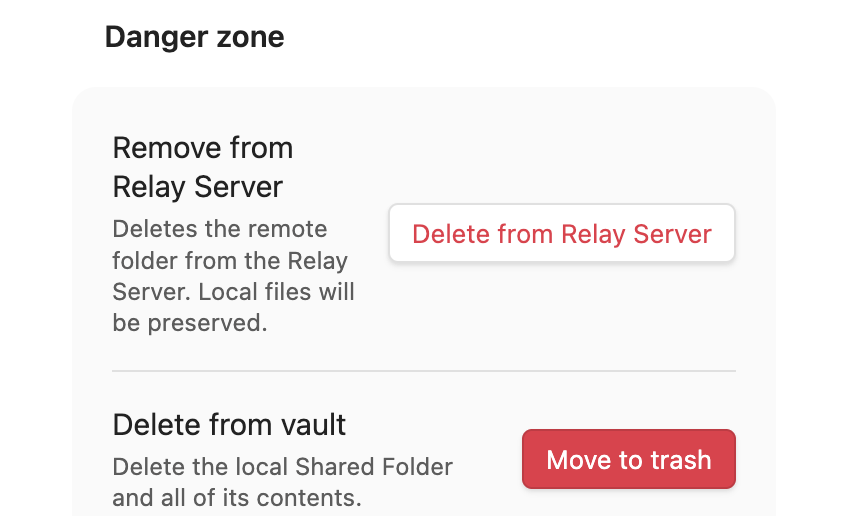
In Danger zone, find Delete from vault and click Move to trash.
To download the server copy again, follow Add the Shared Folder to your vault.
End collaboration on this Shared Folder for everyone
You must have the Owner role to delete the Shared Folder from the Relay Server. If you’re not an Owner, ask an Owner to delete it for you.
This removes the Shared Folder from the Relay Server for everyone. Files already downloaded to your machines and your collaborators’ machines stay there.
In Danger zone, find Remove from Relay Server and click Delete from Relay Server.
To check the result, confirm that the folder no longer appears among that server’s Shared Folders.
Optional: stop tracking the local folder
To return the folder to a regular local folder, delete its local Relay metadata.
After removing the Shared Folder from the Relay Server, you can use Delete metadata in the local folder settings. This removes the remaining local Relay metadata and leaves your files in place. Your folder is now a regular local folder, and Relay no longer tracks it.
Delete notes or subfolders inside the Shared Folder
Deleting notes or subfolders inside a Shared Folder also deletes them from collaborators’ copies when the deletion syncs. Deleting a subfolder includes the shared files and subfolders inside it. Collaboration continues on the remaining contents of the Shared Folder.
If you delete all the notes inside a Shared Folder, those deletions sync too. Emptying the folder is not the same as removing your local copy of it.
To remove the entire Shared Folder from your filesystem while keeping the server copy and collaborators’ copies, follow Remove this device’s copy of the Shared Folder.
Recover a deleted local folder
If the folder is still in the trash, restore its files using Obsidian’s guidance for deleted files. You can also restore files from a backup.
If the Shared Folder is still on the Relay Server, you can download it again. Changes that never synced must come from your trash copy or backup.