Save attachments next to your notes
On this page
A shared note can embed an image stored anywhere in your vault, but Relay shares only the files inside the Shared Folder. If Obsidian saves the image to a vault-wide folder such as Attachments/, your collaborators receive the note without the image.
Set Obsidian to save new attachments next to the note you're working on, so they land inside the Shared Folder with it.
The file type also has to be one the Shared Folder syncs. Images, PDFs, and other attachments need storage on the folder's Relay Server. File types such as HTML also need Other files turned on for the folder on each device. For details, see Sync non-Markdown files and Storage for shared files.
Save attachments in a subfolder next to the note
We recommend this setting. Each folder keeps its attachments in its own subfolder.
- Open Obsidian settings (the gear icon in the lower left).
- Select Files and links.
- Under Default location for new attachments, select In subfolder under current folder.
- Under Subfolder name, enter
Attachments, or another name you prefer.
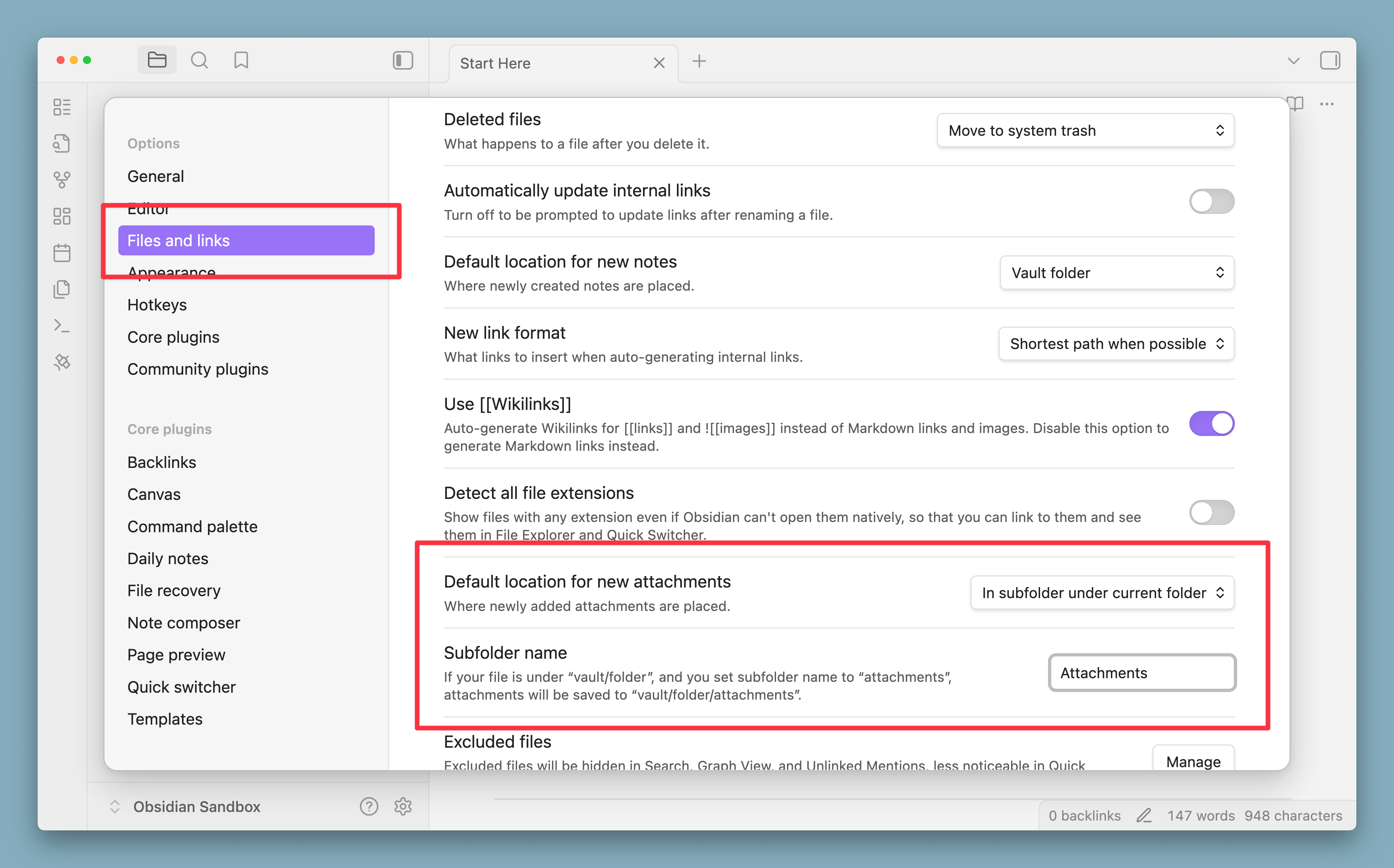
For example, if your note is Projects/Website/meeting-notes.md, a pasted image is saved to Projects/Website/Attachments/. If Projects or Website is a Shared Folder, the image is inside it and syncs with the note.
Save attachments in the same folder as the note
If you don't want a separate subfolder, save attachments beside your notes.
- Open Obsidian settings.
- Select Files and links.
- Under Default location for new attachments, select Same folder as current file.
Move existing attachments into the Shared Folder
The attachment setting applies to new attachments only. To share an attachment that's already outside the Shared Folder, move it in.
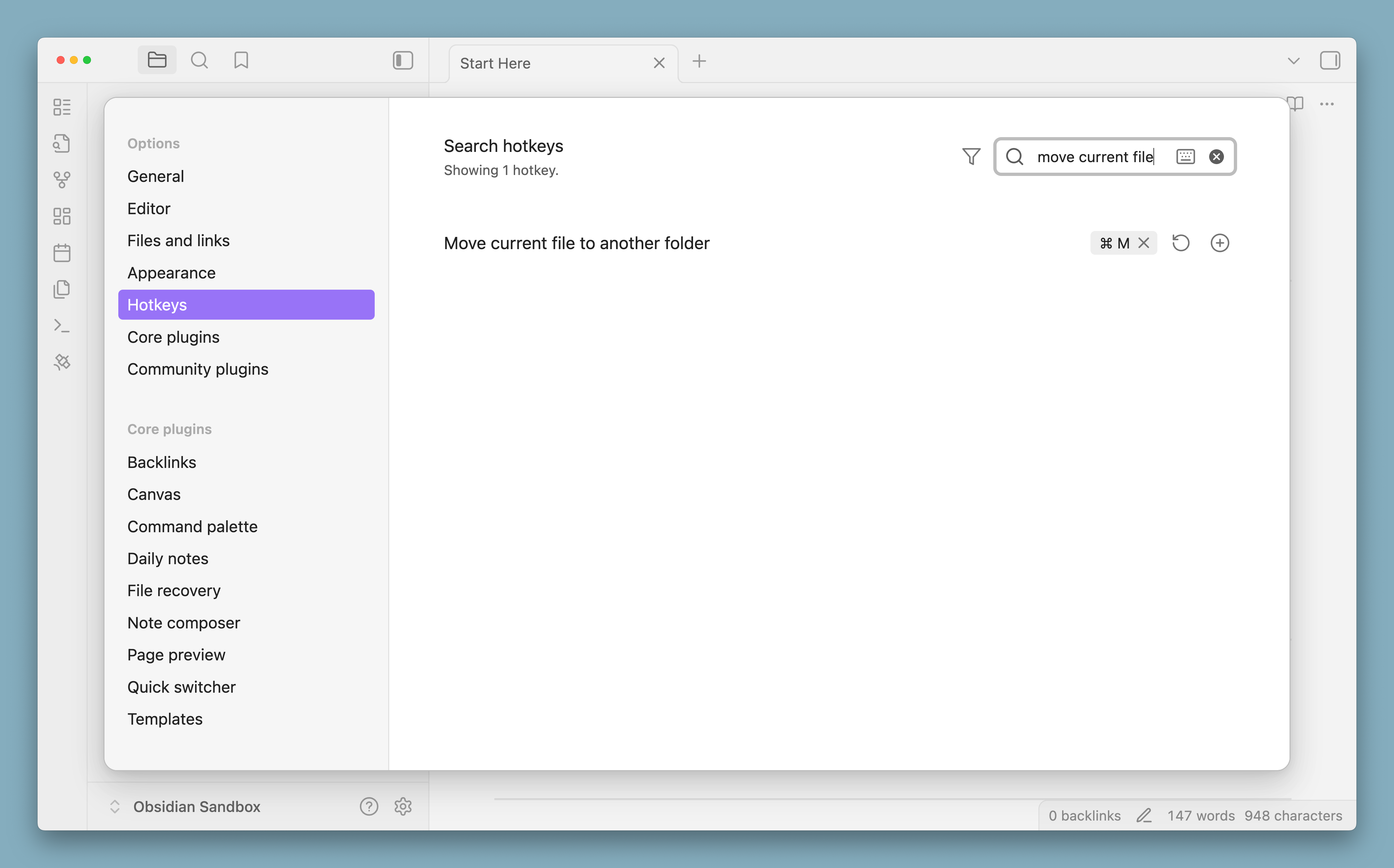
To move files faster, assign a hotkey to Move current file to another folder in Settings > Hotkeys.
If you keep attachments in a vault-wide folder on purpose, move each one into the Shared Folder when you want to share it.