Resolve local conflicts
On this page
Relay automatically combines collaborators’ edits to a shared note. A local conflict is different: the file on your local disk has diverged from Relay’s local CRDT record — the version it maintains for collaborative editing — and Relay needs your help reconciling the contents.
When another editor, an agent, or a script changes a file on disk, Relay sees the changed text rather than the individual editing steps. Relay usually merges those changes automatically, but when it cannot reconcile them, you need to choose what to keep.
These conflicts were more common with the old sync engine in Relay 0.7.x and earlier. They are much less common with the new sync engine released in 0.8.12, which automatically picks up and merges changes on disk.
Before you start: backups
Before resolving conflicts, make sure your backup system has a recent copy of the affected folder, including any local edits that haven’t synced. Keep that version available until you’ve checked the result. If you don’t have a backup system in place, make a one-off copy of the folder somewhere outside Relay’s Shared Folders.
Find the affected notes
Relay shows a warning when you open a note with a local conflict. You can follow that warning, or use the Sync status sidebar to look for other notes that need attention.
Gray stack icon
The stack icon in a note’s header is gray when Relay is not tracking edits in the open note. It can turn gray briefly while the note loads or Relay merges changes.
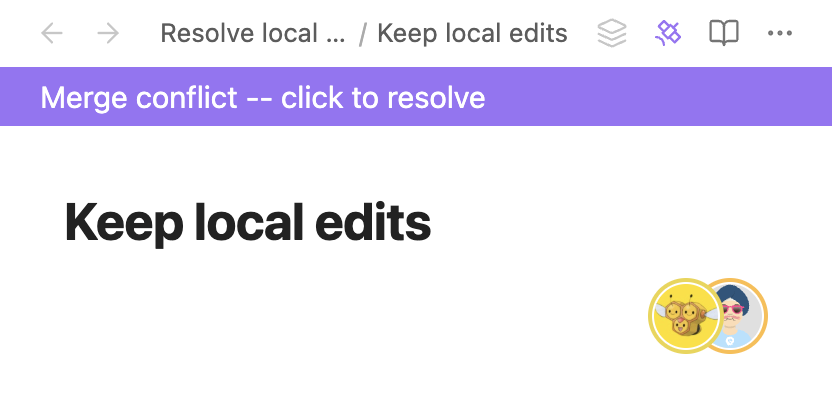
If the Merge conflict -- click to resolve banner appears, click it to resolve the conflict. If the stack icon stays gray without a banner, open Obsidian’s command palette and run Relay: Show sync status: [folder name] to inspect the folder’s status.
An unresolved local conflict keeps the icon gray while the banner is shown or the conflict is open. For Markdown notes, Relay also marks the note in Obsidian’s file explorer with a dot in your theme’s warning color.
Open the conflict in the current note
If the note you’re reading has a local conflict, click its Merge conflict -- click to resolve banner to open File diff.
Find other notes with conflicts
To look for conflicts across a Shared Folder:
- Open Obsidian’s command palette (Cmd+P on Mac, Ctrl+P on Windows/Linux).
- Run Relay: Show sync status: [folder name].
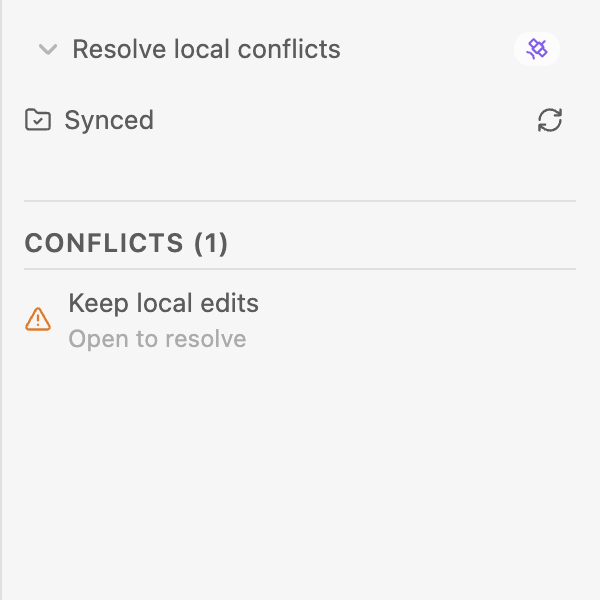
- In the Sync status sidebar, look under Conflicts and click a note’s name.
- Click the banner in that note to open File diff.
Many conflicts after moving to the new sync engine? If you moved from the old sync engine to the new sync engine in Relay 0.8.12, see Resolve a backlog of local conflicts for help clearing the one-time backlog while preserving local edits.
Read the competing versions
File diff shows two versions of the note. In Relay 0.8.12, Local file means the contents on disk, and Remote means the remote CRDT record. Local can mean either the local CRDT record or the contents on disk, depending on how Relay detected the conflict. Read the text on both sides before choosing what to keep.
Read the highlighted text before choosing. A note you never opened on this device can still contain local differences worth keeping. If a label seems inconsistent with the text you recognize, compare the actual text with your backup before proceeding.
Choose a complete version
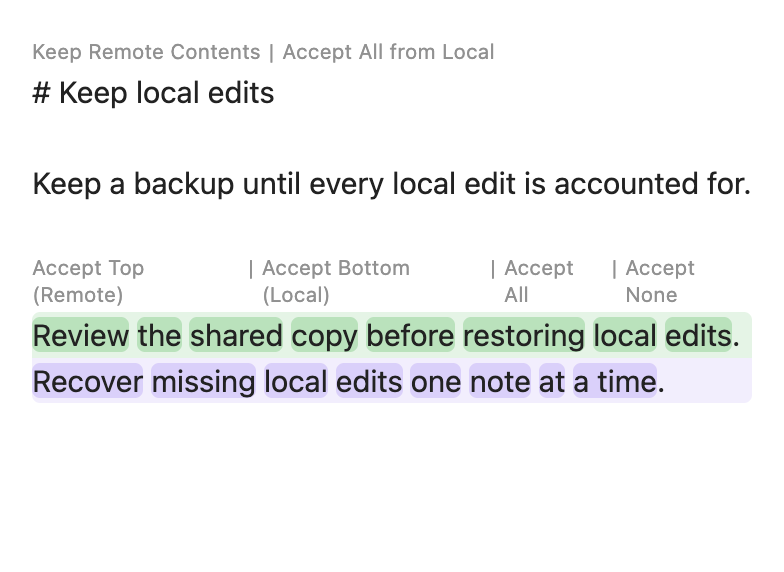
If one version already contains everything you want, use the controls at the very top of File diff. You do not need to select every changed block separately.
In the example above, Keep Remote Contents keeps the complete Remote version. Accept All from Local keeps the complete Local version. The wording follows the versions being compared; another conflict can show Local file instead.

After choosing, Relay returns to the note. Read the result and check that the intended text is present. Then check the folder’s Conflicts list again. A cleared warning alone does not prove you kept the right content.
Combine changes within a note
The controls immediately above a highlighted block apply to that block:
| Control | Result |
|---|---|
| Accept Top | Keep the upper version of the changed block. |
| Accept Bottom | Keep the lower version of the changed block. |
| Accept All | Keep both versions of this block, upper text followed by lower text. |
| Accept None | Remove both versions of the changed block. |
Accept All within a block combines its two texts. Accept All from Local at the top of the view selects one complete version of the note. Check which control you are using.
Review the resulting wording, especially if keeping both versions repeats a sentence or leaves contradictory instructions. Then check that the intended text is present and revisit the folder’s Conflicts list. Check other affected devices separately: each can have its own local differences.
Other recovery options
Get help from an agent
The Relay agent skills let your agent inspect sync status, list conflicts, and compare note contents. The repository includes installation instructions and requirements for using the skills with Obsidian on desktop.
Ask your agent to produce a diagnostic report before it makes any changes.
If you want your agent to resolve the conflicts too, ask it to show you the proposed changes first and leave ambiguous choices for you. Afterward, have it verify that the notes contain the intended text. The resolution skill has known issues with identifying which version is which, so review the actual text before approving a change.
Download the existing Shared Folder again
If you want to recover from the server’s copy, follow Download the Shared Folder again. Check that your backup includes local edits first: anything that never reached the server must be recovered from the backup afterward.
This removes and re-adds the local copy of the same Shared Folder. It does not create a replacement folder or delete the folder from the Relay Server.
Troubleshooting
If conflicts keep returning, check whether another sync service also manages the same content. See Using Relay with other sync services for configuration guidance.
If conflicts continue, contact us in the Relay Discord. Include your Relay and Obsidian versions, the affected operating systems, and any other sync services managing the folder. Describe one note’s conflict, the choice you made, and what happened afterward. If an external editor or agent changed the file, include that context too. Screenshots are very helpful for resolving the issue quickly.