Share a folder
On this page
Relay shares a folder from your Obsidian vault through a Relay Server. Choose the server, then choose the local folder you want to share. People on that server can add the Shared Folder to their own vaults.
Prepare your folder
Use Obsidian with Relay installed and a Relay Server you can access. If you need a server, create a Relay Server. Put the notes you want to share in a folder in your vault.
For images, PDFs, and other attachments, check the attachment storage requirements.
Share the local folder
- Go to Relay settings: open Obsidian’s command palette (Cmd+P on macOS or Ctrl+P on Windows and Linux), then run Relay: Open settings.
- Under Relay Servers, open the settings for the server you want to use.
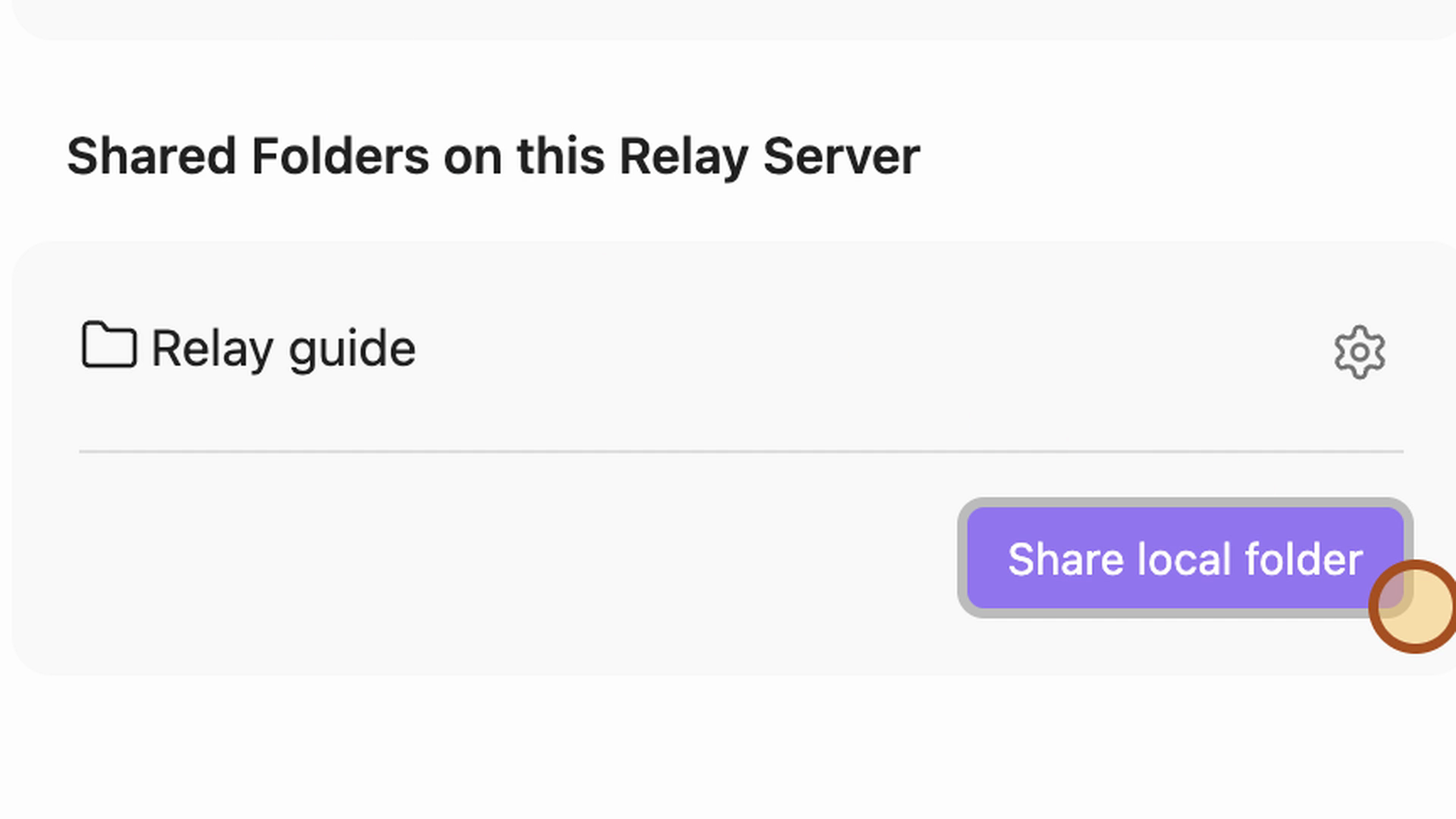
- Click Share local folder.
- In Choose or create folder..., find and select the folder from your vault.
- If a Share local folder dialog remains open, leave Private off and click Share.
Check the result
On the server’s settings screen, find your folder under Shared Folders on this Relay Server. The local folder stays in your vault.
Sharing the folder and joining the server are separate steps. A collaborator joins your Relay Server, then adds the Shared Folder to their own vault. Joining the server alone does not add its folders.
We recommend backing up your vault with Git. That gives you a history to restore if you want to revert something a collaborator did or recover from a sync problem.
Invite collaborators
Continue with Invite collaborators to invite someone to the server and add the Shared Folder on their device.