Remove a user from a Relay Server
On this page
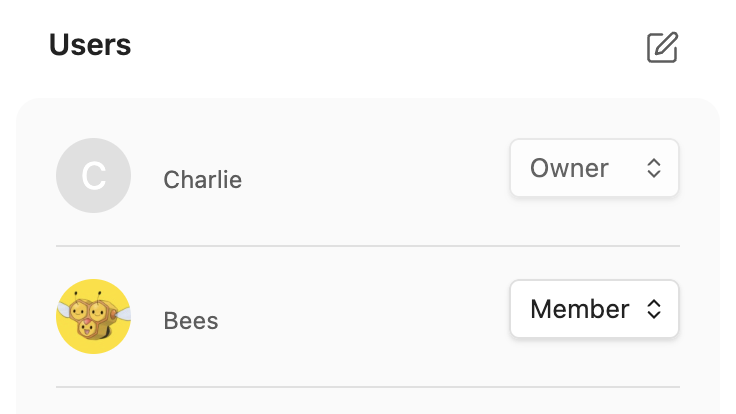
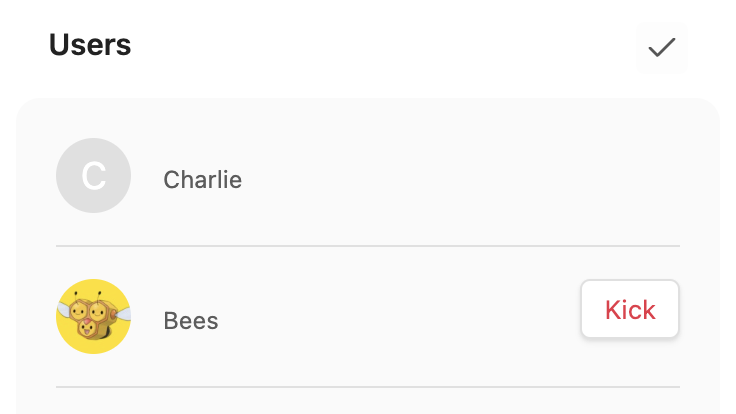
To remove someone from a Relay Server, open its settings, click the edit icon beside Users, and click Kick next to their name.
Removal stops future updates to that person but does not delete files already downloaded to their device. To prevent them from rejoining with the same share key, rotate the key too.
Check your role
You must be an Owner of the Relay Server to remove users and manage its share key.
Remove the user
- Open Relay settings.
- Under Relay Servers, click the gear icon beside the server you want to manage.
- Beside Users, click the edit icon (Edit members). This reveals the Kick buttons.
- Next to the person you want to remove, click Kick. The person disappears from the Users list.
- To finish editing, click the checkmark beside Users.
Replace the share key
A person who still has the server’s share key can join again after removal. Follow Rotate a share key to replace it or turn off key sharing.
Rotating a key does not remove existing members. Give the replacement key only to people you want to invite, including anyone you intend to let rejoin.
Removal does not erase the person's local files. A copy remaining on their device is expected and does not by itself mean they still receive updates.
Troubleshooting
If the edit icon is missing, check your role on that Relay Server. The user-management controls are available to Owners. If you are a Member, ask an Owner to remove the person.
To reveal the Kick buttons when roles appear beside people's names, click Edit members. Your own account has no Kick button.
If Relay reports Failed to remove user, check the Users list before treating the removal as complete. For help with a persistent error, contact Relay support on Discord.