Install Relay Comments
On this page
Install by hand in Obsidian, or install with an agent that can write to your vault. Both methods need Obsidian 1.7.2 or later.
Install by hand
- In Obsidian, open Settings → Community plugins.
- If Restricted mode is on, select Turn on community plugins.
- Select Browse, then search for
Relay Comments. - Select Relay Comments, then select Install.
- When installation finishes, select Enable.
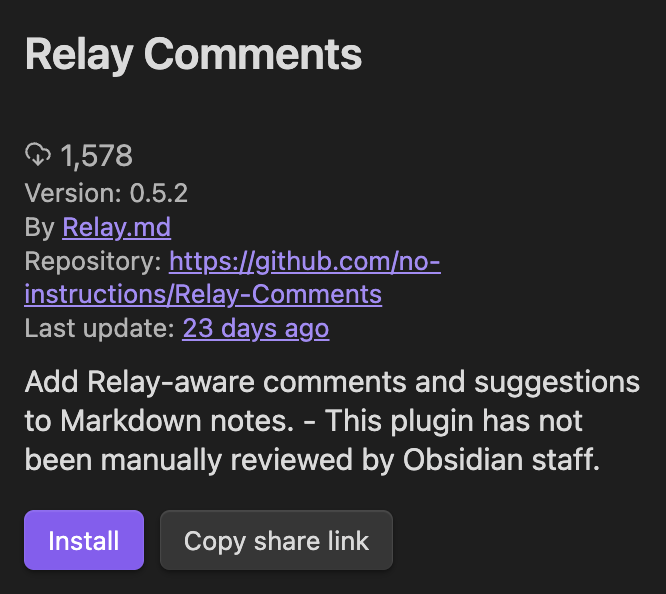
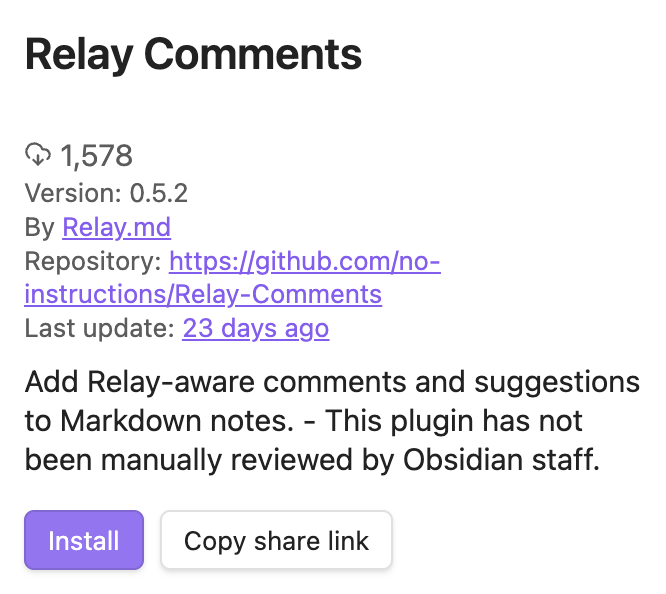
You can also open the Relay Comments entry in the community plugin catalog.
Install with an agent
Give your agent the link to this page and the path to your vault. Ask it to install Relay Comments in that vault using the steps below.
- Download
main.js,manifest.json, andstyles.cssfrom the official Relay Comments 0.6.0 release. - Check that the manifest names
relay-commentsas the plugin ID and0.6.0as the version. Verify the files against the SHA-256 digests on the release. - Place those three files in the vault’s plugin directory, normally
.obsidian/plugins/relay-comments/. Keep existing settings indata.json.
When your agent finishes, open Settings → Community plugins and enable Relay Comments. If Restricted mode is on, select Turn on community plugins first. If the plugin doesn’t appear in the list, reload Obsidian.
Already using the Obsidian CLI?
Your agent can install and enable the plugin in one command. Replace Work with your vault name:
obsidian vault="Work" plugin:install id=relay-comments enable
Check the installation
- Open a Markdown note.
- Open the command palette. On macOS, press Command+P. On Windows or Linux, press Ctrl+P.
- Type
Open review sidebarand select Relay Comments: Open review sidebar.
The sidebar lists the note's review items.
Use it with Relay
To review notes with other people as they write, put the notes in a Shared Folder. For the steps, see Share a folder. Relay Comments also works in notes you keep to yourself.
Start a discussion
To discuss a passage, see Comment on a note.