Comment on a note
On this page
Use Relay Comments to discuss a passage in your notes. Comments and replies stay in the Markdown file.
Prepare a note for review
Install Relay Comments and open a Markdown note. To add comments or change review items, you need write access to the note.
Use Live Preview to select text and the review sidebar to discuss it. You can also read comments in Reading mode.
Add a comment
- In Live Preview, select the passage you want to discuss.
- From the context menu, choose Add comment.
- In the sidebar's Write a comment… field, enter your comment.
- Select Comment.
The thread appears in the sidebar, with the selected passage attached to it.
If Add comment asks you to open a table or callout for editing first, select a table cell, or use Edit this block for a callout.
If the selected passage changes to span other markup while your draft is open, Relay Comments 0.5.2 refuses to save it and keeps the draft text. The notice reads The commented text changed; select it again.
Reply to a thread
- From the command palette, run Open review sidebar.
- In the sidebar, select the thread you want to answer.
- In the Reply… field, enter your reply.
- Select Reply.
Your reply appears in the thread.
Resolve a thread
- In the review sidebar, select the discussion you have finished.
- Select the thread card’s ✓ (Resolve) button.
Resolving a Markdown comment thread removes the discussion's comment markup from the note. It keeps the passage's text. A CriticMarkup highlight used to anchor the discussion becomes plain text; an Obsidian native highlight remains highlighted.
If the discussion is attached to a suggestion, resolving the discussion leaves the suggestion for a separate accept-or-reject decision. If you use Resolve on a suggestion without a discussion, it accepts the suggestion.
Use the sidebar for discussion
The sidebar lists the note's comments, suggestions, and highlights. To open the sidebar, run Open review sidebar from the command palette. To close it, run Close review sidebar.
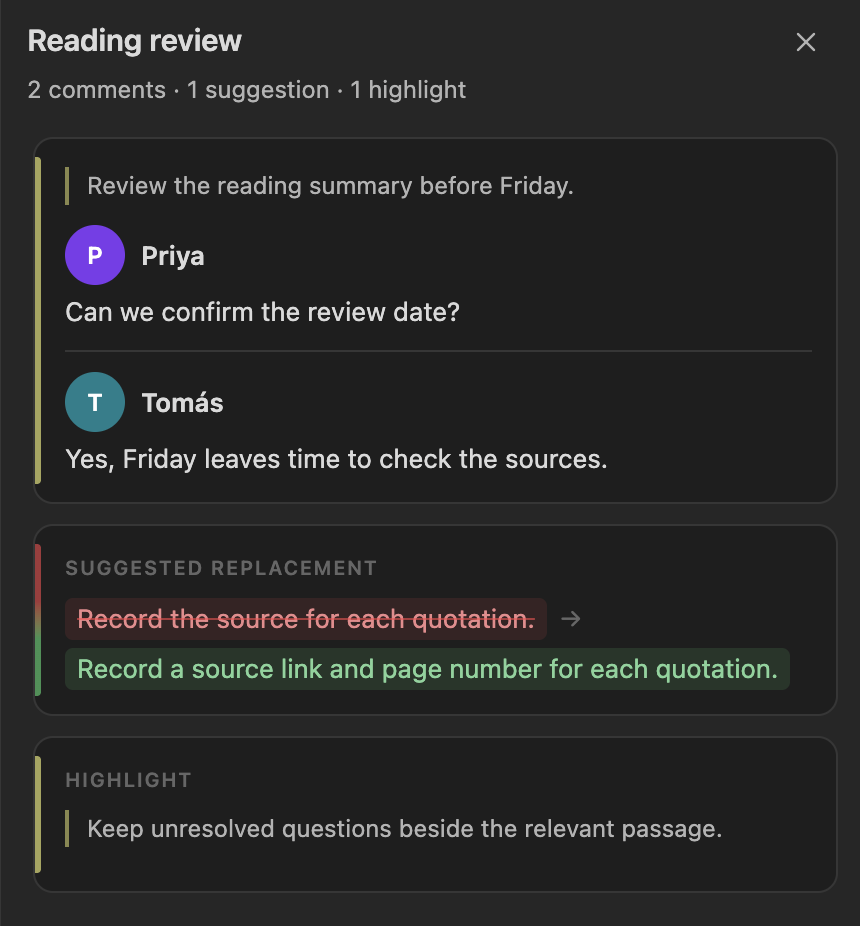
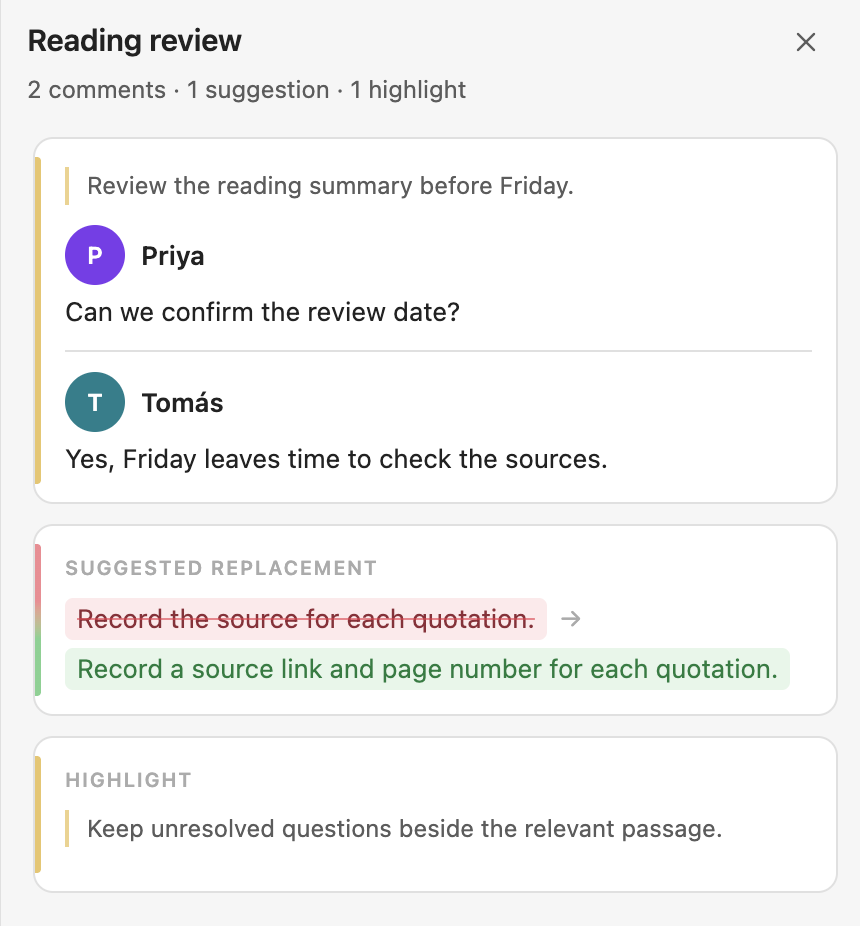
For comments inside rendered tables and callouts, hover over the highlighted text to preview the thread, or select it to open the thread in the sidebar.
Use the comment shortcut
To add a comment to selected text, press Command+Option+M on macOS or Ctrl+Alt+M on Windows and Linux. The shortcut also works for selected text inside Canvas notes and native text cards. On a Canvas without a focused text editor, Add comment starts pin placement.